Automate multi-step workflows
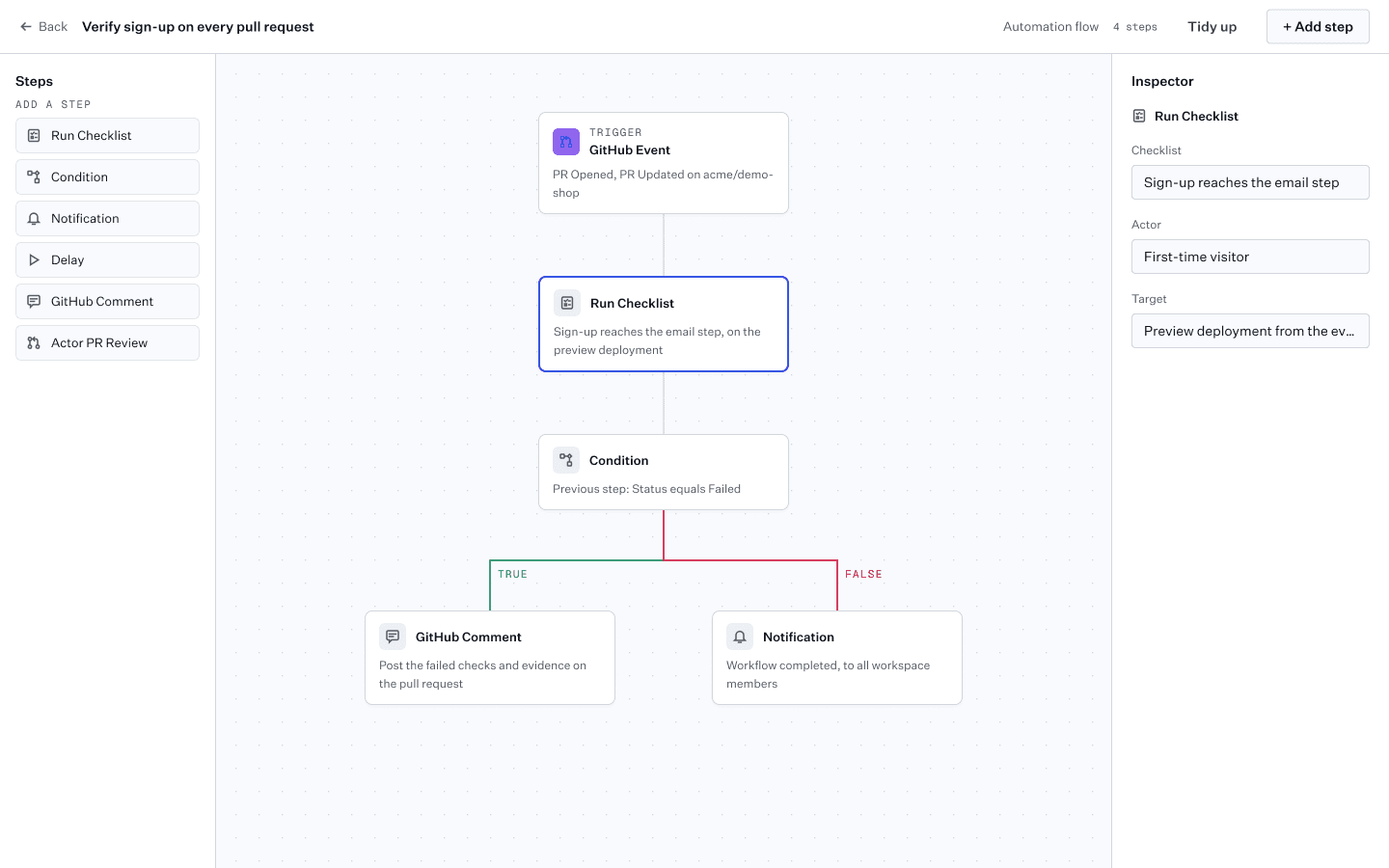
A checklist verifies one flow in one run. An automation (a workflow, in the MCP tools) chains steps into a graph that runs on its own: a trigger starts it, and each step hands its result to the next. In this tutorial you build a common one for a product team: when a pull request changes, run a checklist against it, and report the outcome.
Before you start
- A project with a checklist for the flow the pull request touches. If you have none yet, the Quickstart creates some.
- GitHub connected, with the repository under Watched repositories. If your previews deploy on Vercel, you can start from Vercel instead, so the checklist runs against the preview.
Create the automation
Open Automations and click Create automation. The dialog has three steps:
- Trigger: choose GitHub (or Vercel). An event trigger whose integration is not set up yet says Set up followed by its name, and choosing it opens the connect dialog.
- Configure: pick the events that count, such as PR Opened and PR Updated, and optionally limit it to one repository.
- Details: name the automation and choose the project it runs in.
Click Create automation. It opens in the flow editor with the trigger already in place. Later, Edit flow on the automation's page opens it again.
Turn it off while you build
A new automation is Active as soon as it is created, so the next pull request would start it. Switch Active off in the automation's Settings tab, or from the Automations list, until it does what you want.
Add the steps
Click Add step and add, in order:
- Run Checklist: choose the checklist. With a Vercel trigger, tick Use Vercel deployment URL so it runs against the preview that started the automation.
- Condition: check the previous step, for example Previous step → Failed count equals 0. A condition has two outputs, True and False.
- GitHub Comment on the False output, so a failing run is reported on the pull request. From a Vercel trigger, the pull request is found from the deployment.
- Notification on the True output, to tell the team by email or Slack that the change passed. Or put an Actor PR Review there, so an actor reviews the change once the checklist passes.
Try it
Click Run Now to start it by hand, then open the run from the Runs tab to see what each step did. Adjust and run it again until you trust the result.
Switch it on
Switch Active back on. From now on, every matching pull request runs the checklist and reports its outcome, without anyone starting it.
Steps you can use
| Step | What it does |
|---|---|
| Run Checklist | Runs an existing checklist and carries its result forward |
| Condition | Branches on the previous step's status or its passed, failed or error count |
| Notification | Sends an email or Slack message to workspace members |
| Delay | Waits before continuing, to give an async process time to finish |
| GitHub Comment | Posts a comment on the triggering pull request |
| Actor PR Review | Has an actor review a pull request and report its findings |
Other triggers
The same editor works with every trigger. Manual runs when you (or the API) start it, Schedule runs on a recurring schedule in your timezone, and Webhook runs when your CI calls its URL. The event triggers each have their reference on the integration's page: GitHub, Vercel, Slack, Figma, Cursor Origin and Webhooks.
An automation created from an assistant over MCP needs the mcp:run
scope to run unattended. Without it, a schedule, webhook or event automation is
created paused, and it cannot be switched on from that connection.