Core concepts
Stunt Double is organized around a small number of building blocks. This page defines each one and how it relates to the others. For how to use them, follow the link at the end of each section.
- ActorAn AI user driving a real browser
- ChecklistVerifies a flow, check by check
- InterviewReports how personas got on
- AutomationRuns both on a schedule or event
| Term | In one line |
|---|---|
| Workspace | Your team: members, billing and every project |
| Project | One product or surface, and everything that tests it |
| Actor | An AI user with instructions and knowledge that drives a real browser |
| Checklist | Plain-language checks an actor verifies, each with evidence |
| Interview | A structured study run with persona participants, ending in a report |
| Live session | An actor using your product in real time while you watch and steer it (early access) |
| Automation | A graph of steps that runs checklists on a schedule or an event |
| Comment | A pin a real visitor drops on your page through the feedback widget |
| Issue | A problem a run, review or comment found, tracked until it is fixed |
| Goal | What a project is trying to achieve, with the evidence linked to it |
| Idea | A recommendation your actors write after exploring the product together |
| Topology | A map of your product's screens and the paths between them |
| Device | A Mac in your workspace that runs work against sites inside your network |
Workspaces and projects
A workspace is the top-level container for your team. It owns members, billing and every project. A project sits inside a workspace and groups the actors, checklists, interviews and runs for one product or surface, so a team with several products keeps them apart. A project's overview leads with its latest run, anything running now and what changed since your last visit.
Actors
An actor is an AI user you create, named by the role it stands in for ("Busy shop owner"), never as a person. Three things define it:
- Instructions: who it is and how it behaves, written to the actor.
- Personality: how skeptical, how technically literate and how quickly frustrated it is, set on sliders and applied everywhere it works.
- Knowledge: what it can look up mid-run (expertise, processes, reference facts and test accounts), opened only when a task needs it.
An actor drives a real browser and works through your product the way a person would: observe the page, act, observe the result, repeat. On the Startup plan and above it also gets an inbox of its own for sign-up and verification emails. See Build an actor that behaves like your audience.
Checklists
A checklist is a set of checks written in plain language, each describing an outcome that should be true. An actor runs through them in a browser and reports each one as passed or failed, with a screenshot and a short explanation. A check can block the run, add to a score or just record what the actor saw. Checklists are the fastest way to catch regressions in flows that are tedious to test by hand, such as sign-up, checkout or onboarding. See Write checklists that catch real regressions.
Interviews
An interview is a structured study run with persona participants: your actors, or personas generated for the study. You write a guide of questions and tasks, each participant works through your product and answers in character, and every round ends in a report of themes, quotes, the screens behind them and a usability score. See Run a user interview.
Live sessions
A live session puts you beside an actor while it works, so you can steer it, interview it in character or take over the browser. Live sessions are in early access and switched on per workspace. See Run a live session.
Workflows
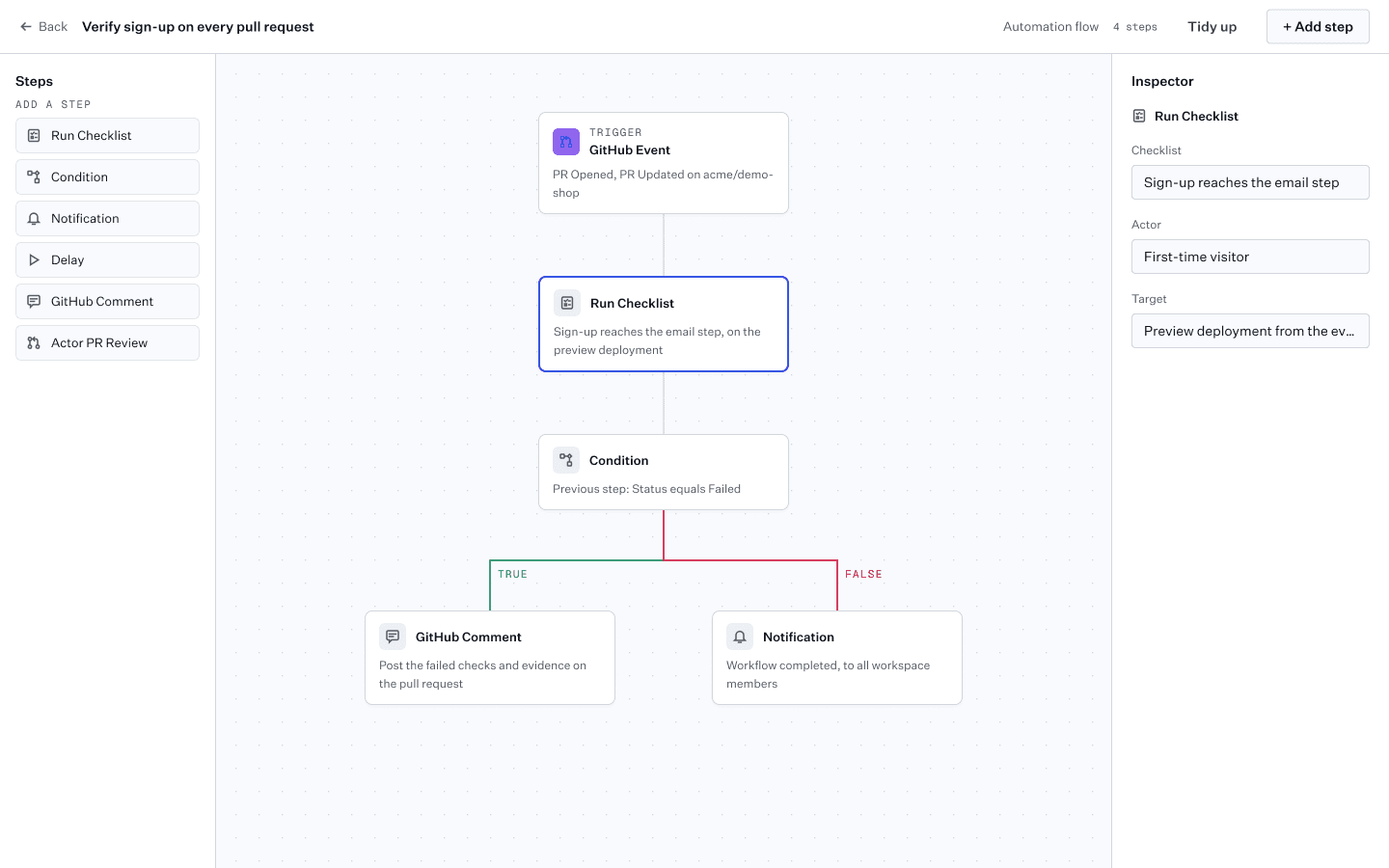
A workflow, called an automation in the dashboard, is a graph of steps started by a trigger. Where a checklist verifies one flow, an automation decides when checklists run and what happens with the result: post a comment on a pull request, notify a channel, branch on a condition. See Automate multi-step workflows.
Comments and the feedback widget
Actors report what an AI persona experienced. Comments cover the other half: what a real visitor experienced. The feedback widget is a small script you add to your own site, so visitors can drop a pin anywhere on a page and leave a comment where it applies. Each comment arrives with a screenshot, the page and device details, and only domains you approve can send them. See Collect stakeholder feedback on a prototype and the feedback widget reference.
Issues, goals and ideas
Issues are the problems a project needs to fix. Failed checks, open design review notes and new comments show up on the project's Issues page on their own, each linked to its evidence, and become tracked issues in a click. See Review runs and act on them.
Goals say what a project is trying to achieve, such as "New visitors finish sign-up without help". Link feedback and ideas to the goal they support, so the evidence for each goal sits in one place.
Ideas come from a co-create session: say what you want to learn and pick the actors, and each explores the product before they turn what they found into ideas and recommendations. Problems they find become issues.
Topology
A topology is a map of your product: its screens, the paths between them and what changed since the last version. An actor crawls the site to draw it, and pages that checklist runs and interview participants visit are added as you test. Topology is in preview.
Devices
A device is a Mac in your workspace running the desktop app, on any paid plan. On the Startup plan and above, runs against a site only reachable inside your network go through a device, using that Mac's network and sign-ins. See Devices.
Recordings and replays
Everything an actor does is recorded. For any run you can replay the session, step through each action and see the screenshot captured at that moment, which is what makes a failed check or a surprising interview answer easy to diagnose.
Next steps
To drive any of this from code or an assistant, see API and agent access and the MCP server. To connect the tools your team already uses, see Integrations.