Review runs and act on them
Every checklist run is recorded in full, whether you started it, an automation did or an assistant did over MCP. This tutorial goes from a finished run to a decision: read the report, check it against the run before, and turn what is broken into tracked issues. Interview rounds have a report of their own, covered in Run a user interview.
- You need
- A finished checklist run
- Next
- Automate multi-step workflows
Read a run report
A run report leads with the verdict, a score for any weighted checks, and the checks that need attention. It is organized into tabs:
- Results: each check's status and a short explanation, with the screenshot taken on the page the actor was on when it reached its verdict.
- Journey: the pages the actor visited and the emails it read, in order.
- Screenshots: the page as the actor saw it at each step, useful for spotting a visual regression that a pass or fail wouldn't catch.
- Recording: the full session, to step through or watch end to end.
- Knowledge: which knowledge entries the actor drew on, useful for checking whether it relied on something out of date.
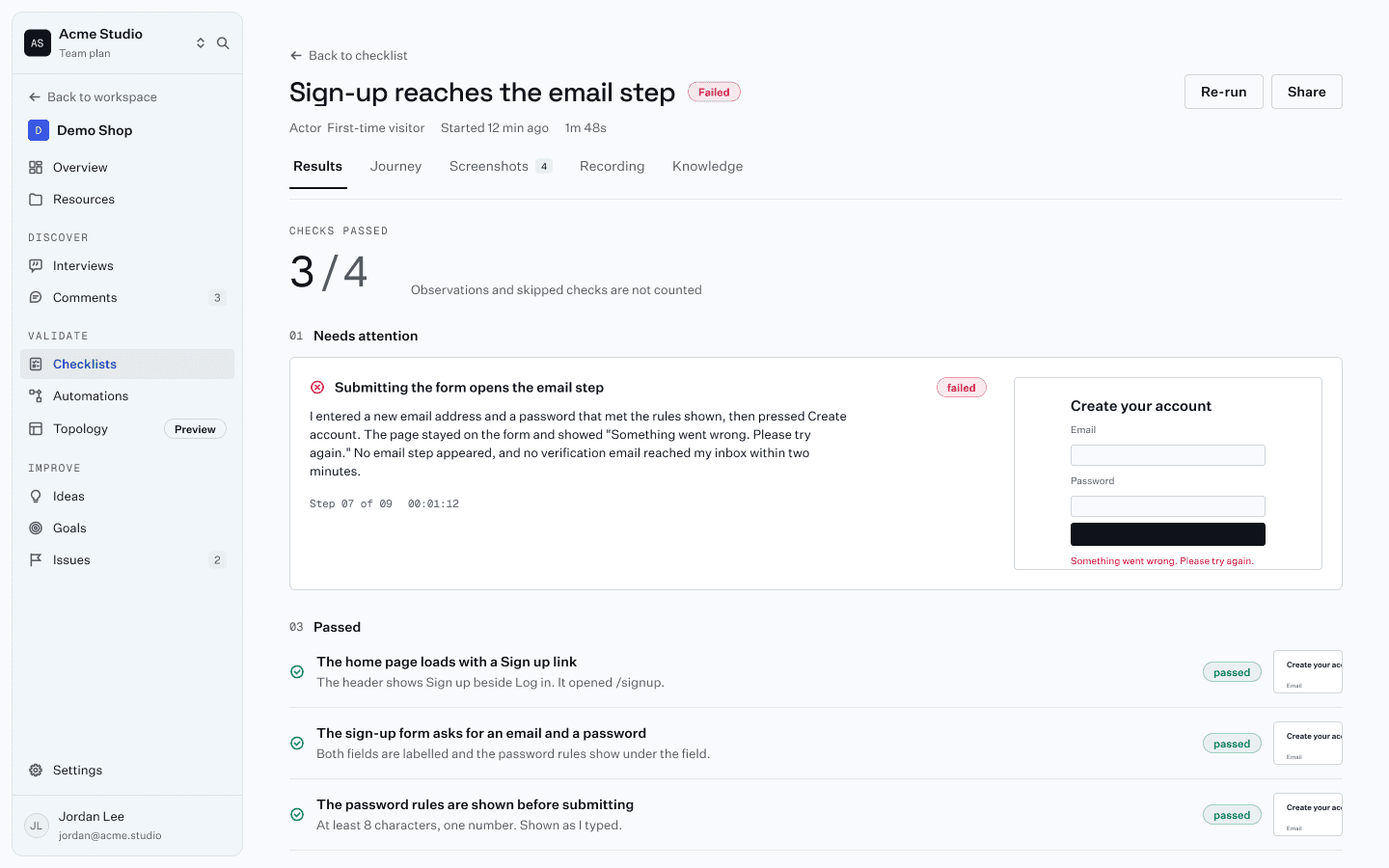
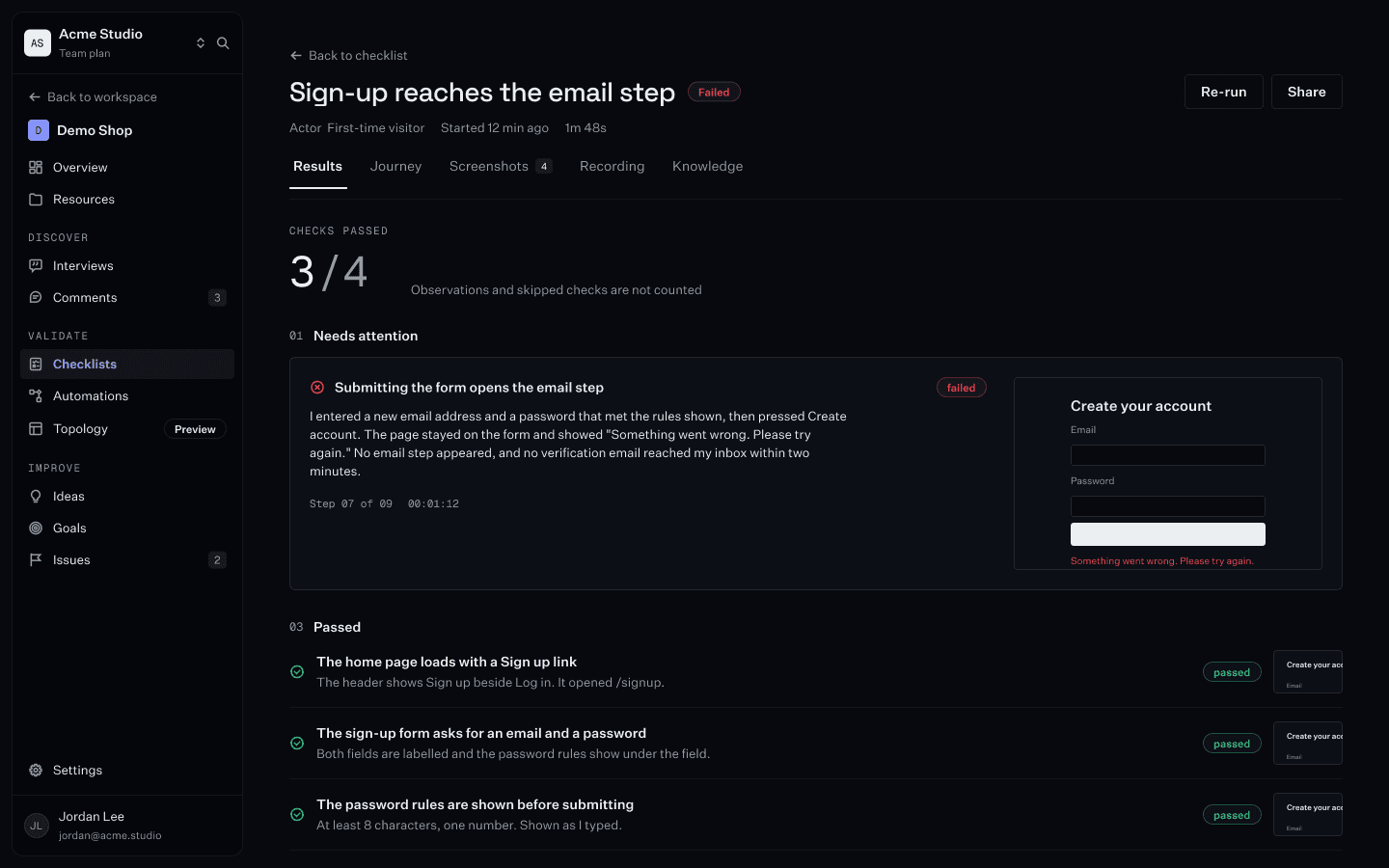
Start with Results to get the headline, then open Screenshots or the Recording when a result needs more context than the explanation gives you. A check that errored is inconclusive, not failed, and a check skipped by its run condition says nothing about your product either.
While a run is in progress, its report shows Cancel run. Cancelling a run on a device frees that device for the next run straight away.
Run video (beta)
Turn on Run video in a checklist's Instructions tab and each finished run also gets a short narrated video on its Results tab: the outcome, then every check with the steps the actor took to reach it, its verdict and the screenshot it was judged on. Every line it speaks comes from the run's own results, so it says what the report says. It is off by default, not on the Free plan, and each video counts towards your workspace's compute and AI usage.
When a run needs you
Sometimes an actor can't get past a step on its own: a code only a person has, or a choice between two paths that changes what is being tested. Rather than guess, it pauses the run and asks. The run shows Needs you, and the person who started it is notified.
On the run page, The actor needs a hand shows the question and, for a hosted browser, the browser live. Type an answer and choose Send answer, or do the step yourself in the browser and choose I have done it, carry on. Anyone in the workspace can answer. If nobody does within 15 minutes, the run carries on without an answer, so treat its verdicts with more care.
Compare it with the run before
A finished run is compared with the previous completed run of the same checklist, under Since the previous run. It names what changed rather than what is red, which is the difference between a report you read every time and one you stop opening. Informational checks are compared as text, so "$29 per month" becoming "$39 per month" shows up even though no pass or fail moved.
Agentic runs also leave notes for the next run of the same checklist by the same actor: the route that worked, what blocked it, and what it left behind (an account it created, a password it reset). The report shows them under Notes between runs. Notes never carry verdicts or passwords, so every run still judges each check on what the page shows today. If the product is rebuilt between runs, turn off Learn from the last run under Configuration on the checklist's Instructions tab.
Re-run before you trust a single failure
An actor in a hosted browser can hit a transient problem, a slow page load or a flaky third-party script, just like a human tester can. Before filing a bug from one failed run, choose Re-run on the report. A failure that reproduces is worth acting on straight away; one that doesn't may point to a check that needs to be more specific (see Write checklists that catch real regressions).
Share the report
Under Share, Copy report link gives teammates the report itself, and Get share link creates a public link that shows the checks, evidence and screenshots without a sign-in (Disable link revokes it). Email report sends it to a list of addresses.
Triage what runs find in Issues
You should not have to open every report to find out what is broken. A project's Issues page collects it for you. Its Detected tab lists checks that failed on the latest run, design review notes nobody resolved, and feedback comments nobody has triaged, each linked to its evidence. Create issue turns one into an issue you can assign, prioritize and move through open, in progress, resolved or dismissed, and Needs attention shows the open ones, highest severity first.
Work through Detected on a regular cadence rather than only after something breaks. A failure that keeps coming back is a sign the check, or the product, needs a closer look.
Send results where your team works
Connect Slack, Linear and GitHub so failed runs land where your team already works, instead of waiting to be checked.