Collect stakeholder feedback on a prototype
Share a prototype and the notes come back as screenshots in Slack, with no way to tell which page or which build they were about. In this tutorial you run one round of feedback on a prototype with the feedback widget: reviewers pin comments on the exact spot, and you triage, answer and close them from the project's Comments view.
You need a Stunt Double project for the prototype and a deploy of it where you can add a script tag.
1. Turn comments on for the project
Open the project holding the prototype and go to Comments. If comments have never been enabled, you get a short explainer and an Enable comments button. Enabling switches the feature on and creates the project's API key, which ties the widget on your site back to this project and its own inbox.
2. Add the widget to the prototype
The Comments view now shows the install step with two tabs. With Claude
gives you a prompt to hand to a coding agent that has your repo open; Code
gives you the script tag to paste just before </body>. Either way, copy it
with the Copy button so the key is filled in. The
integration reference explains
each attribute.
Deploy or reload the prototype and open any page carrying the snippet. Within a few seconds the install step flips from Waiting for widget connection to Widget detected and moves you on to the Comments view.
If it never flips, the usual causes are a mistyped key and a host that is not
allowed yet. A prototype on a preview URL needs that host (or
*.your-domain.com) under Allowed domains; see
Troubleshooting.
3. Hand it to your reviewers
Before you send the link, decide who should be able to comment.
- Internal review. Turn on Require sign in in the comment settings. Reviewers get a Sign in to review button, sign in to Stunt Double in a popup, and their comments are badged Team. This is the right setting for an unreleased prototype on a public staging URL.
- A wider round, with customers or people outside the workspace. Leave sign-in off and send the link.
Either way, leaving a comment takes three actions:
- Click the floating button in the bottom-right corner, or press
c. - Click the thing the comment is about. The widget outlines the element under the cursor and pins the comment to it; hold Shift to drop a free pin instead.
- Type the comment (and, when not signed in, a name and optional email), then send. Escape cancels at any point.
The name and email are remembered in that person's browser, so their second comment only needs the comment. The email is only used to tell them when someone replies to or resolves what they left.
Keep Show comments on page on for a group review and existing pins are drawn on the page, so five reviewers discuss one thread instead of filing the same note five times. Turn it off when you want independent reactions: the widget still collects everything, it just does not show anyone else's.
4. Triage what comes back
The project's Comments view is where feedback lands. It opens on the Open queue, with New, Resolved and All beside it, and counts across the top: total comments, how many are open, how many pages they came from, and how many are resolved. New comments appear as they arrive, without a reload.
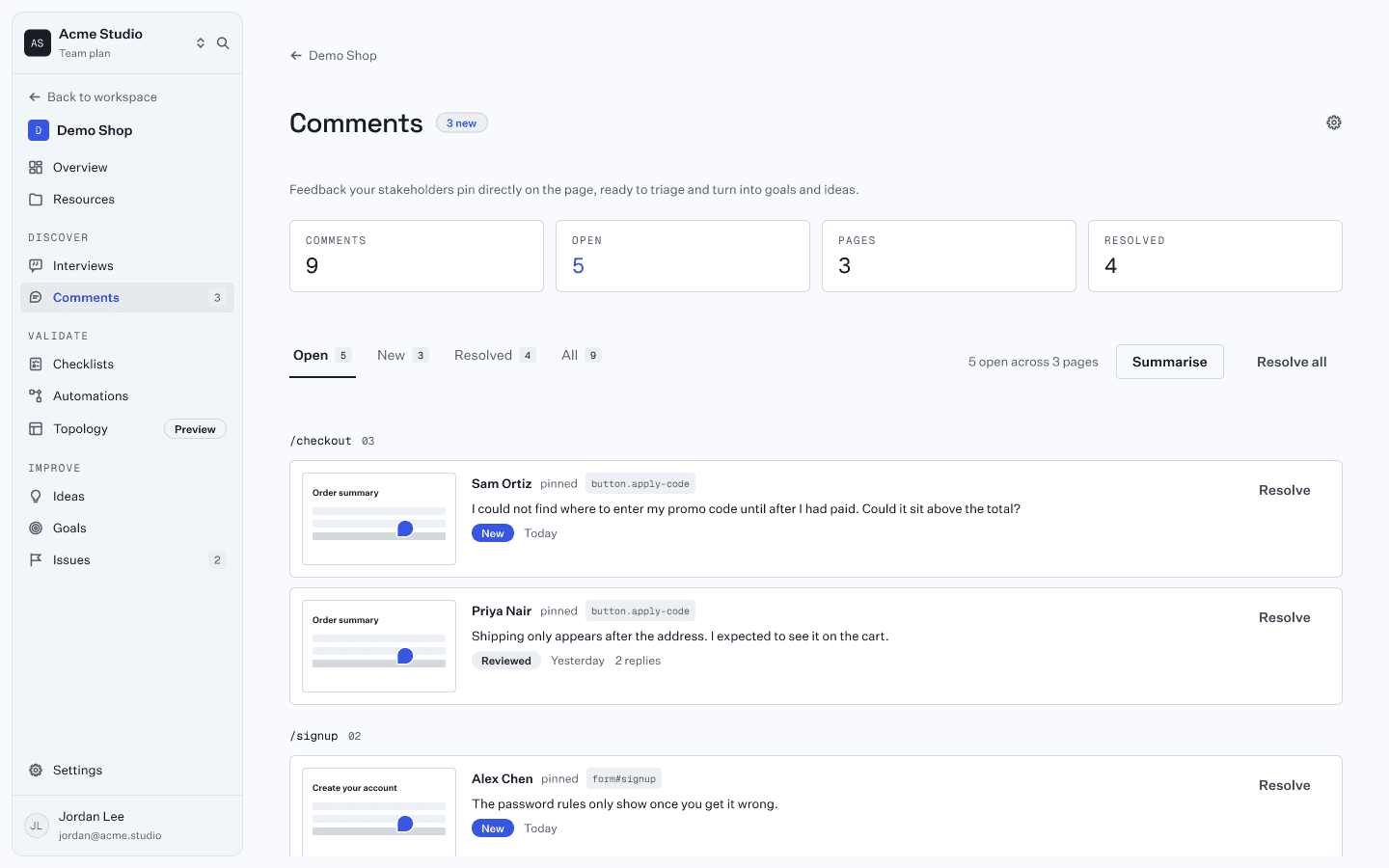
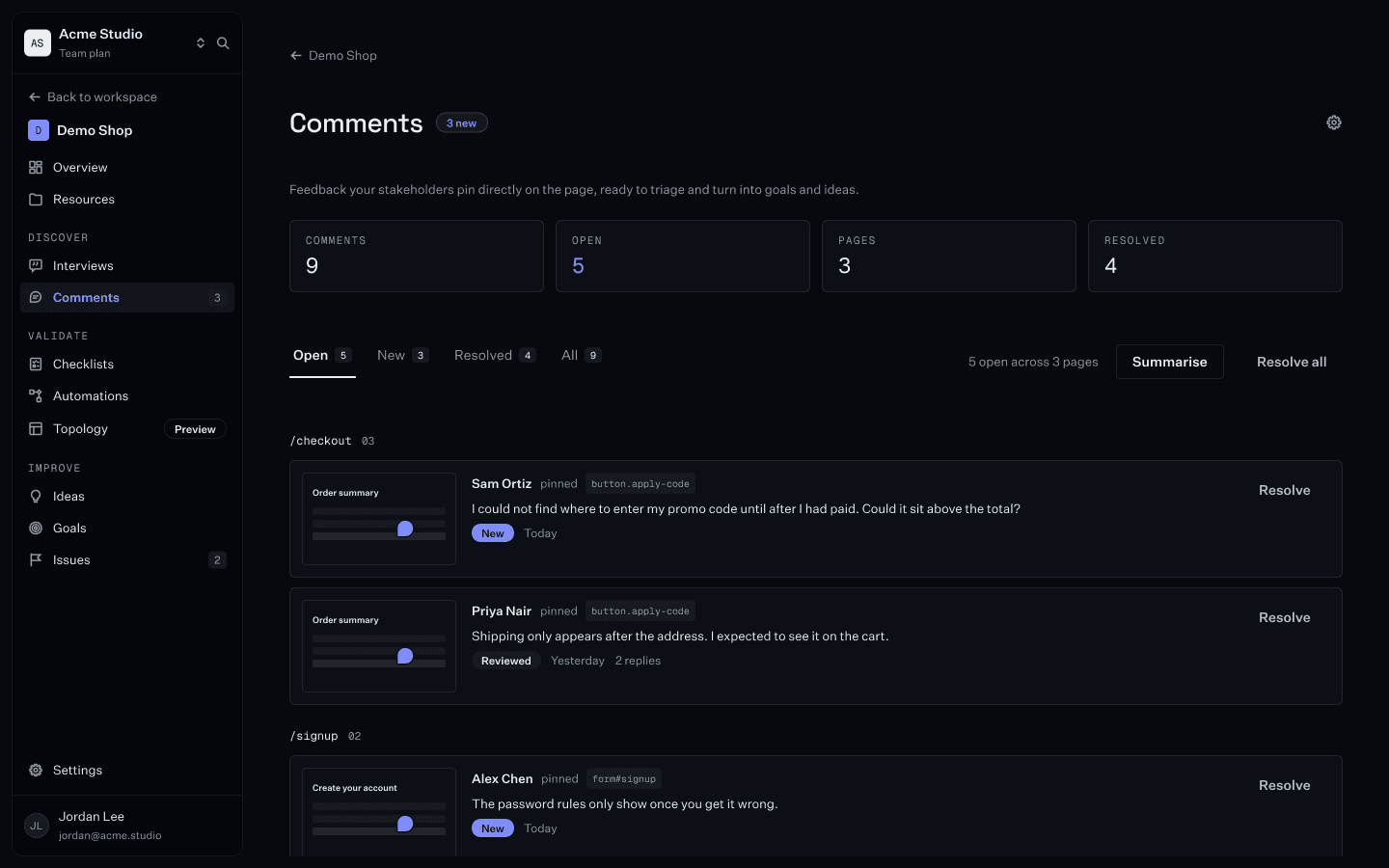
Comments are grouped by page, because that is how you fix them. Expand a page to see every pin left on it, collapse the ones you have dealt with, or use Collapse all when the list gets long. Where the pins cluster is where the prototype is failing.
Open a comment to see the screenshot with the pin in place, the element it was attached to, the device and viewport, the reply thread and the status control. From there:
- Reply in the thread. If the person left an email they are notified, and the reply appears on the page for them under a Team badge.
- Change status between new, reviewed, resolved and dismissed. Resolving notifies the author, which is what turns a round of feedback into a closed loop.
- Generate prompt writes a brief for a coding agent from that one comment, its thread and where it was left.
Resolved and dismissed comments are filed under Resolved rather than deleted, so you can still show why a decision was made three iterations ago.
Summarise a busy round
When a round brings in more comments than you can read one by one, Summarise reads the queue you are on and returns three things: the comments grouped into themes, the questions they leave open, and a prompt you can hand to a coding assistant. Answer the open questions in the dialog first; the prompt only covers the work they do not hold up. A summary of an unchanged queue is saved, so opening it again is instant.
Comments nobody has triaged also show up on the project's Issues page beside failed checks and open design review notes, so they are not forgotten between rounds.
5. Close the round
Once you have shipped fixes, click Resolve all to clear the open queue in one go, then send the prototype out again.
Each comment records which version of the page it was left on. A page group with more than one version shows a small timeline, v1 for the earliest through to the newest badged Latest, and selecting a version filters the group to the comments left on it. That keeps comments about a button you have since removed out of the way of comments about the new build. To tie versions to your own builds, or have a new build close old comments automatically, see Versions.
Next steps
- Stakeholder feedback for other ways to run the widget (staging review, beta testing, a standing channel on production) and for turning recurring comments into checks.
- Run a user interview to put persona participants through the same prototype the reviewers saw.
- Write checklists that catch real regressions to turn a recurring complaint into a check that runs on every deploy.